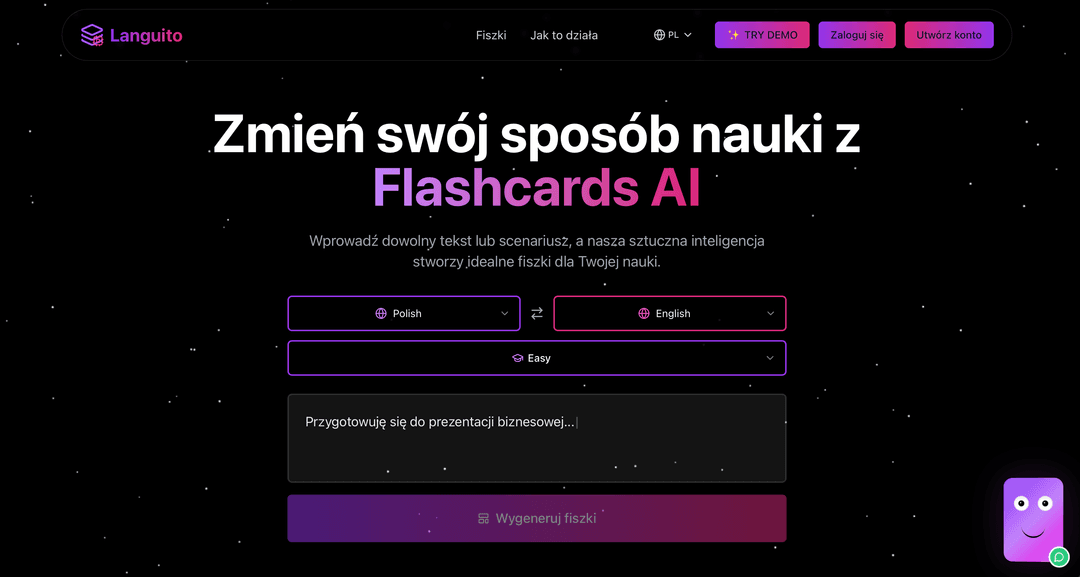
Transform Your Learning with Flashcards AI
Enter any text or scenario and let our AI create perfect flashcards for your learning journey.
OR
Enter any text or scenario.
|
How It Works
Learn any language in four simple steps.
Step 1: Choose & Create
Start your language journey in seconds.
- •Select your native language from the left dropdown.
- •Choose target language from the right dropdown.
- •Pick flashcard difficulty level.
- •Describe what you want to learn - be as specific as you need:
- →“I have a job interview for a software developer position next week”
- →“Going to Barcelona, need help ordering food and buying museum tickets”
- →“Business meeting phrases for my trip to London”
Pro tip: The more details you provide about your situation, the more personalized and useful your flashcards will be!
Click a language to change the interface language
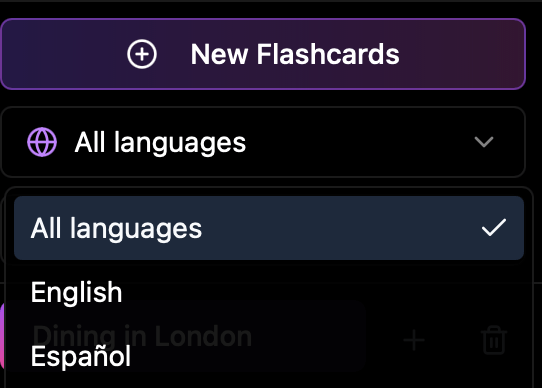
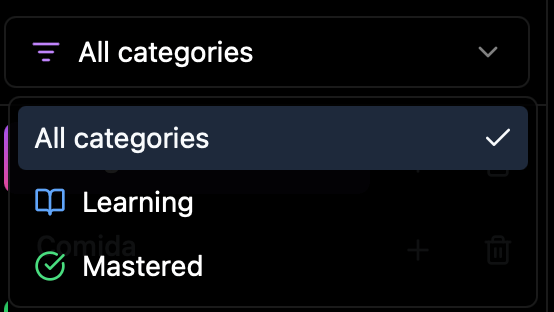
Filter your flashcards by language or progress status to focus your learning:
Step 2: Practice & Learn
Master new vocabulary through interactive exercises.
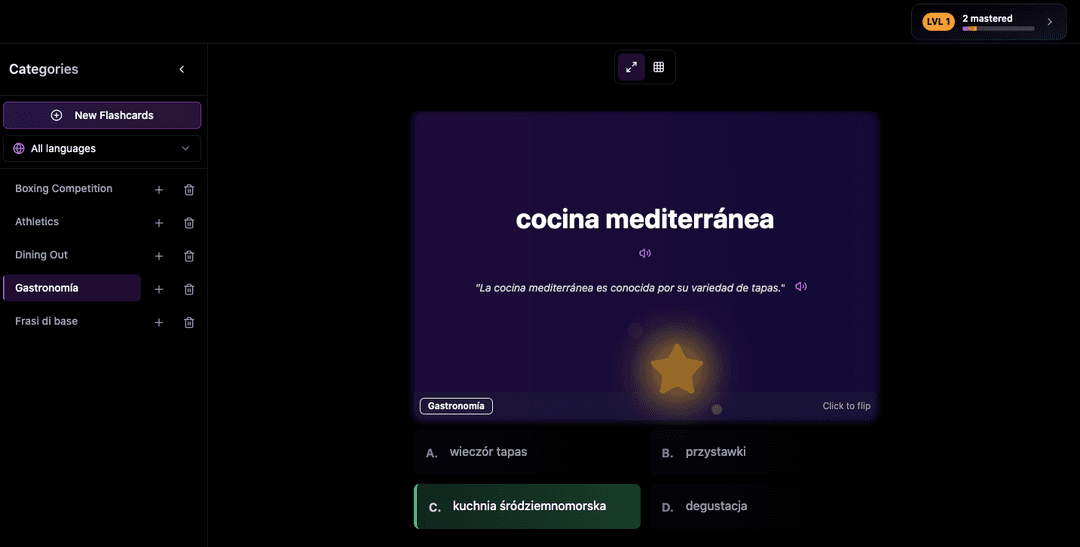
- •View your flashcard with 4 multiple-choice options and track your progress.
- •Select answers and flip cards to check translations. See your progress for each answer.
- •Listen to correct pronunciation of words and example sentences in both languages.
- •Add more flashcards to any existing category with a single click.
- •Filter flashcards by language to focus on what you want to learn.
- •Track your learning progress with categories for 'Learning' and 'Mastered' items.
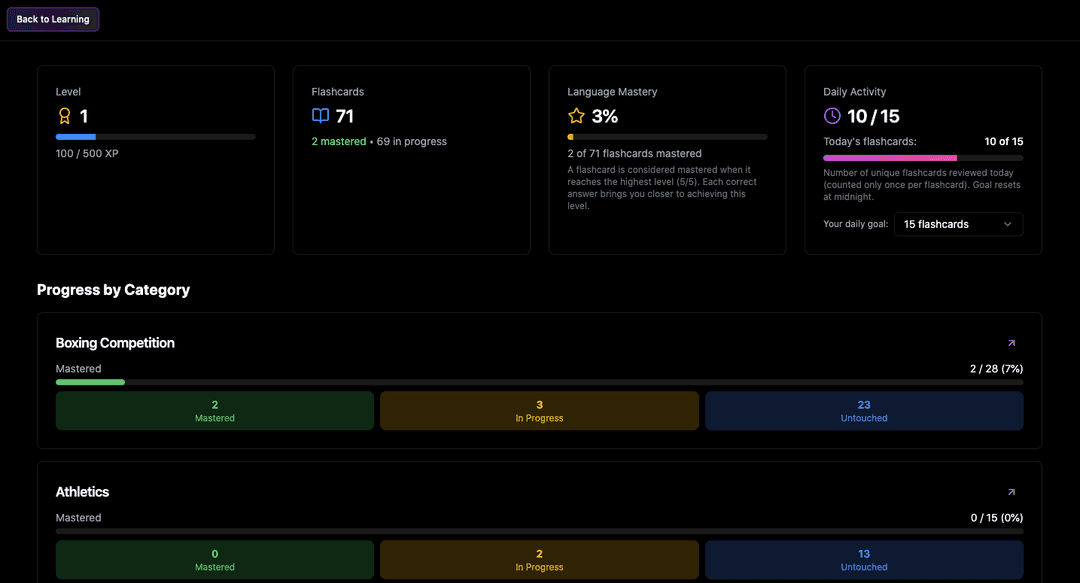
Step 3: Track & Improve
Monitor your progress and reach your goals faster.
- •See what you've mastered and what's left to learn.
- •Set daily learning targets that work for you.
- •View visual progress charts to stay motivated.
- •Benefit from smart repetition that adapts to your learning.
Step 4: Learn while you read
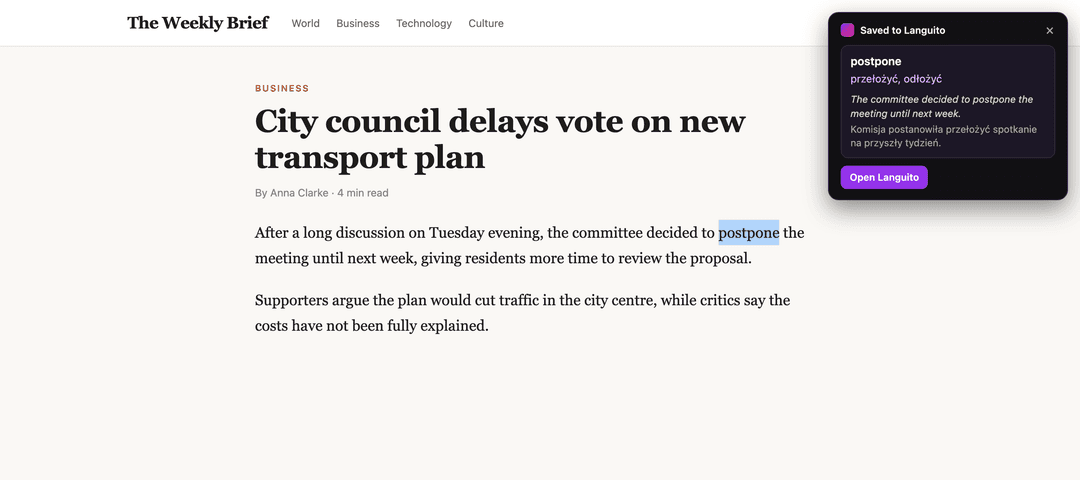
The browser extension turns words from any website into flashcards.
- •Select an unknown word or phrase on any page and right-click it.
- •AI picks the translation that fits the sentence and uses it as the example.
- •Flashcards land in the pinned “From extension” category in your account.
- •Install the extension from the window shown on the site and connect it to your account.